You publish a page, impressions start climbing, and then you check the clicks column — it reads zero. This is the classic Search Console Zero Clicks scenario that panics every marketer: Google is showing your page to searchers, but nobody is clicking through. The good news is that this almost always has a specific, fixable cause. This guide walks through every likely reason in the right order, so you stop guessing and go straight to the solution.
1. Rule Out a Reporting Glitch First
Before you touch anything, confirm the problem is real and not a data delay.
Google Search Console data is not real-time. Google Search Central documentation confirms that click and impression data typically takes 24 to 48 hours to fully populate in reports [link to Google Search Central documentation]. If you’re checking data from today or yesterday, wait before assuming something is broken.
Also check for known reporting bugs. Google occasionally acknowledges temporary data anomalies on its Search Console status pages or through official channels. A quick search for “[current month] Search Console bug” can save you hours of unnecessary troubleshooting.
How to confirm real traffic outside GSC:
- Open GA4 and check organic sessions for the same URL and date range.
- Run a manual search in an incognito window to see if the page actually ranks.
- Compare the trend, not a single day. One flat day means little; two weeks of zero clicks is a real signal.
If GA4 shows sessions but GSC shows zero clicks, the issue is likely tracking or filters, not your rankings. If both show nothing, move to the next section.
2. Check Your Search Console Setup
A surprising number of “0 click” cases come from setup mistakes, not SEO problems.
Verify you’re looking at the right property. Domain properties and URL-prefix properties (http vs https, www vs non-www) track data separately. If your site migrated protocols or subdomains and you’re viewing the old property, new clicks won’t show up there.
Check your permissions. Restricted users sometimes see partial or filtered data. Confirm you have full access under Settings > Users and Permissions.
Review your filters. Search Console lets you filter by date, country, device, and search type. A leftover filter from a previous session is one of the most overlooked reasons a report shows zero when real clicks exist. Clear all filters and re-check.
3. Confirm Your Pages Are Actually Indexed
If your page isn’t indexed, it can’t get clicks, no matter how good the content is.
Quick check: search site:yourdomain.com/your-page-url directly in Google. If nothing appears, the page is likely not indexed.
Then check the Coverage/Indexing report in GSC for these common blockers:
- Accidental
noindextags left in from staging robots.txtDisallowing the page- Canonical tags pointing to a different URL
- Soft 404 errors, where Google treats a “live” page as not found
Fixing indexing issues can take days to reflect in reports, so request re-indexing through the URL Inspection tool once the fix is live.
4. Diagnose the “Impressions but 0 Clicks” Problem
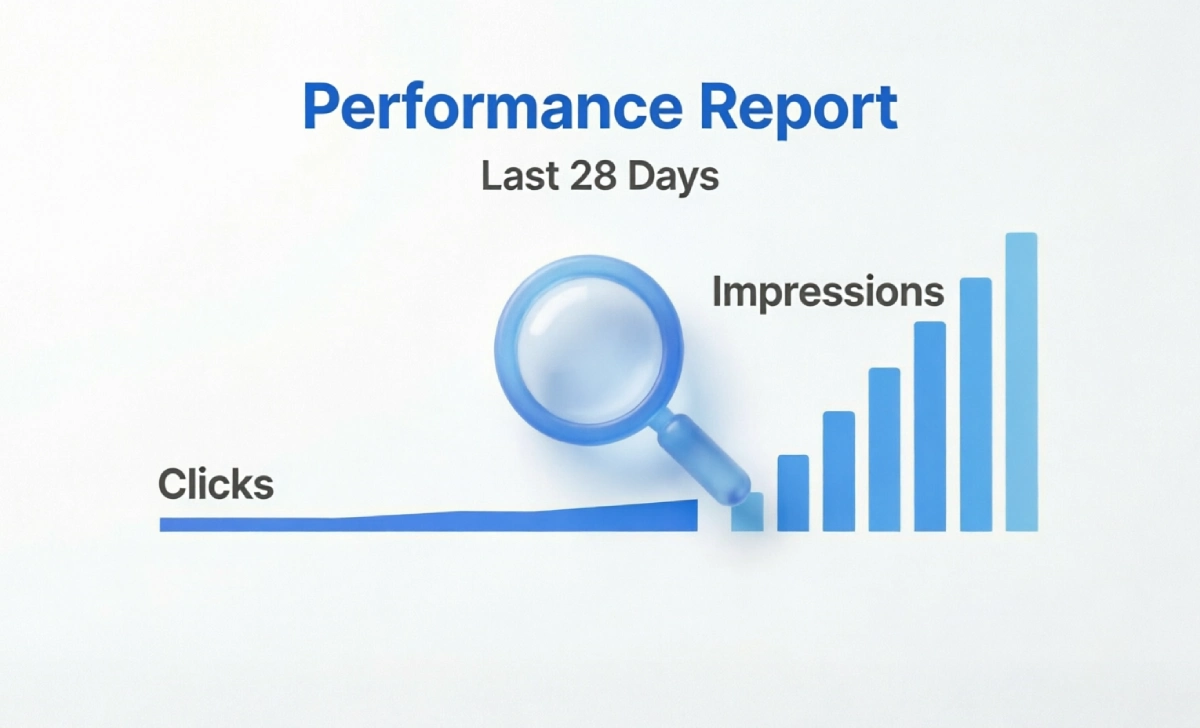
This is the scenario most marketers actually mean when they talk about Search Console Zero Clicks. Your page is indexed, it’s showing in search, but nobody clicks it.
Check your average position
If your average position is below 15–20, you’re likely appearing on page two or later, where click-through rates drop close to zero regardless of how strong your title is. Position is the first thing to fix here; a perfect title on page three still gets ignored.
Consider the zero-click SERP effect
Some queries trigger featured snippets, “People Also Ask” boxes, or knowledge panels that answer the question directly on the results page. Industry research on search behavior has repeatedly noted that a large share of searches now end without any click at all. If your target query is one of these, no amount of on-page optimization will fully solve it. You may need to target a more click-worthy variation of the keyword instead.
Audit your title and meta description
If your position is decent (top 10) and the query isn’t a zero-click SERP, the problem is usually your click-through rate (CTR). Titles that are vague, truncated, or don’t match what the searcher expects will get skipped even from a good position.
For a deeper breakdown of how CTR and traffic actually relate, this guide on click-through rate vs traffic is worth reading before you rewrite anything.
5. Check Content Quality and Search Intent Match
Sometimes the technical side is fine, but the content itself doesn’t satisfy what the searcher wants.
Ask three questions about your page:
- Does it match the intent behind the query (informational, comparison, or transactional)?
- Does it answer the question as completely as the top-ranking pages?
- Is it structured so a reader (and Google) can scan it?
Build topical depth, not just word count. Cover related subtopics a reader would naturally ask about next, and link them together internally so Google understands the page sits inside a broader topic cluster.
If you’re picking new topics to target and want to avoid this problem from the start, focus on low-competition long-tail keywords where ranking on page one is realistic without years of authority building.
6. Technical and On-Page Fixes That Recover Clicks
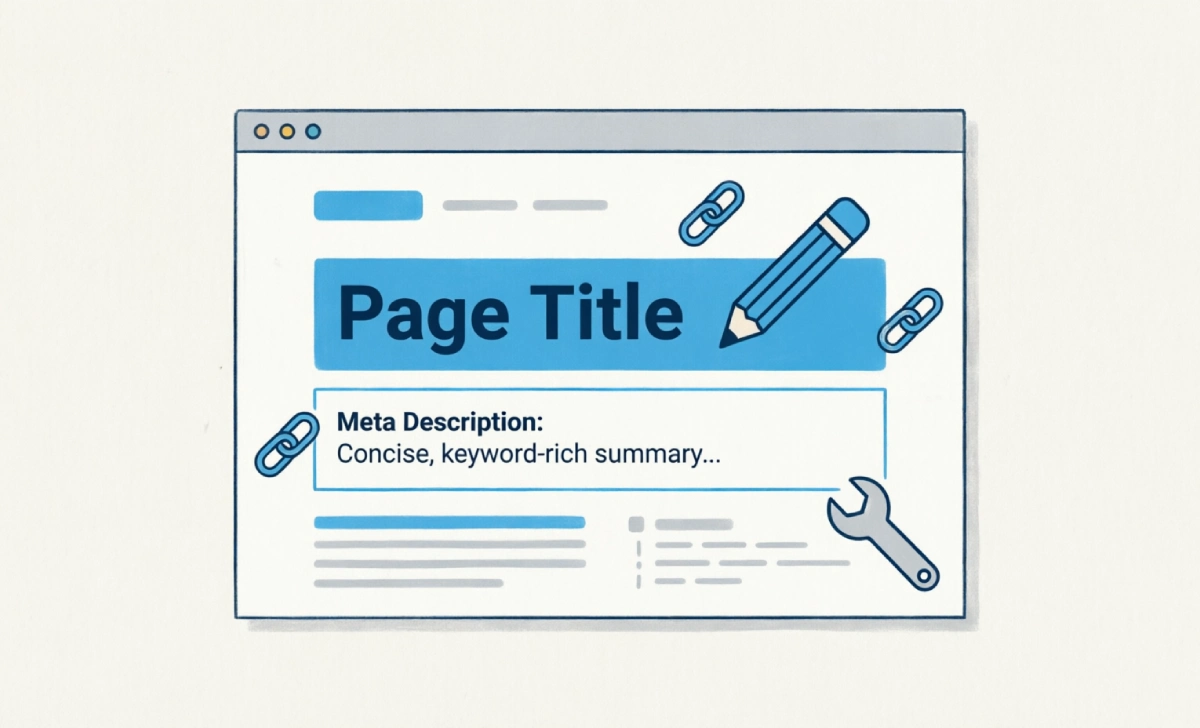
Once you know the cause, here’s what to actually do:
Improve CTR:
- Lead titles with the specific benefit or number, not a generic label.
- Match the title to the actual query intent — don’t promise more than the page delivers.
- Write meta descriptions as a one-sentence pitch, not a keyword list.
Strengthen internal links:
- Link to the page from 2–3 other relevant, higher-traffic pages on your site.
- Use descriptive anchor text instead of “click here.”
Check for tracking or migration leftovers:
- Confirm your GA4 and GSC tracking codes weren’t affected by a recent site migration.
- Watch for JavaScript redirects that hide the final URL from Google.
For a full checklist on tightening these elements after publishing, see this guide on optimizing a blog post for Google.
7. Long-Term Strategy: From Zero Clicks to Consistent Traffic
Fixing one page is a start. Building a system that prevents this problem is the real goal.
- Group content into topic clusters so pages support each other instead of competing.
- Refresh older content every 6–12 months; stale pages lose rankings gradually.
- Target long-tail keywords first on new sites or new sections, since they’re realistic to rank for while your domain builds authority.
If you’re deciding how to split effort and budget between organic content and paid traffic while you wait for rankings to build, this comparison of SEO vs PPC breaks down when each makes sense.
Frequently Asked Questions
Why do I see impressions but 0 clicks in GSC?
Usually low average position, a zero-click SERP feature, or a weak title/meta description.
How long does it take for clicks to appear in Search Console?
Typically 24–48 hours, though full data stabilization can take longer.
What does 0 clicks mean on a high-ranking keyword?
Check if the SERP has a featured snippet or answer box absorbing the click, or if your title matches the intent.
Can a technical bug cause zero clicks site-wide?
Yes. Check Google’s official status updates before assuming an SEO problem.
Why is Search Console data different from GA4?
They measure different things: GSC tracks clicks from Google Search results, GA4 tracks sessions across all channels, and their attribution windows differ.

Other Articles

3 Ways to Say No Without Over-Explaining (That Work)
Meta Description Formula Examples for Higher CTR

No Comment! Be the first one.