
Parental controls on streaming platforms are rarely turned on by default — and that’s a problem most families don’t discover until it’s too late.
Six hours. That’s how long a child can stream on Netflix before a single built-in limit stops them. Spoiler: there isn’t one.
Every major streaming platform has parental controls for screen time management. But almost none activate automatically. Whether you’re a parent, grandparent, or the tech-savvy adult in the family, you’ve probably left at least three platforms wide open without realising it.
Here’s how to fix all of them — Netflix, Disney+, YouTube, Prime Video, Apple TV+, Max, and more. Today.
What You Need to Know
Parental controls on streaming platforms must be configured separately on every app. There is no one-click solution across all services. Each platform uses its own PIN locks, content rating filters, and profile restrictions — and screen time limits almost always require a device-level backup (iOS Screen Time or Android Digital Wellbeing). This guide walks through every major platform, step by step, in under 10 minutes each.
💡 Pro Tip: Start with whichever platform your child uses most. One locked platform today is better than zero locked platforms this weekend.
Platform-at-a-Glance: Parental Controls Comparison
Before diving in, here’s the full picture. Bookmark this table.
| Platform | Kids Profile | PIN Lock | Built-in Time Limits | Difficulty |
|---|---|---|---|---|
| Netflix | ✅ | ✅ | ❌ | ⭐ Easy |
| Disney+ | ✅ | ✅ | ❌ | ⭐ Easy |
| YouTube | ✅ (Kids App) | ✅ | ⚠️ Device only | ⭐⭐ Medium |
| Amazon Prime Video | ✅ | ✅ | ❌ | ⭐⭐⭐ Hard (web only) |
| Apple TV+ | ✅ | ✅ | ✅ (via Screen Time) | ⭐ Easy |
| Max | ✅ | ✅ | ❌ | ⭐⭐ Medium |
| Hulu | ✅ | ✅ | ❌ | ⭐ Easy |
| Peacock | ✅ | ✅ | ❌ | ⭐ Easy |
The pattern is clear: almost no platform has built-in daily time limits. That’s a deliberate design choice — autoplay and endless content are how these services retain subscribers. Your device settings are your real safety net.
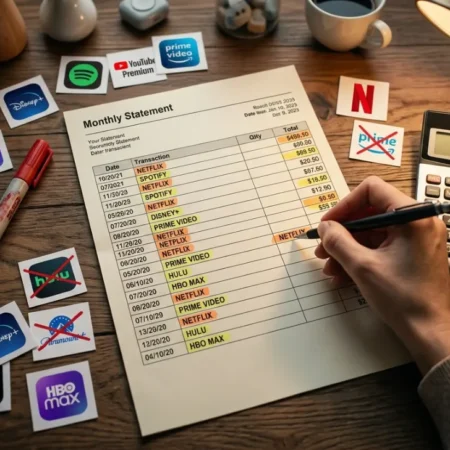
One thing worth doing while you have all these platforms open: check whether you’re actually using all of them. Most households are paying for at least one or two things they barely touch. If you haven’t done a proper streaming subscription audit recently, this is a good moment — fewer active platforms means fewer places to configure controls, and usually a lower monthly bill.
Here’s where most parents completely give up. Don’t.
Why This Matters More Than You Think
These platforms are engineered to keep people watching. Autoplay. “Next episode in 5… 4… 3…” That countdown isn’t a courtesy feature. It’s a retention mechanism.
For adults, it’s hard to resist. For children, it’s nearly impossible.
According to a 2023 Common Sense Media report, children aged 8–12 consume an average of 5 hours and 33 minutes of screen media daily, with streaming accounting for a growing share of that total.
The platforms have no financial incentive to fix this for you. Setting up parental controls on streaming platforms is entirely the responsibility of the viewer — or in this case, the adult in the room. That’s on us.
What Happens If You Don’t Set Controls
Without parental controls and screen time limits in place:
- Kids can access content rated well above their age group — including on “family-friendly” platforms
- Autoplay keeps running indefinitely, with no natural stopping point
- A curious click can move from a kids’ show into mature content within 2–3 taps
- Default recommendation algorithms serve what’s engaging, not what’s appropriate
The good news: every fix on this list takes under 10 minutes. Let’s go.
Netflix Parental Controls: Step-by-Step Setup
Difficulty: ⭐ Easy | Time: ~5 minutes
Netflix feels safe. It isn’t safe by default.
Any profile on a Netflix account can access any content unless you’ve manually configured it. Here’s the complete setup:
Step-by-Step: Lock Down Netflix
Step 1 — Create a dedicated Kids Profile. When adding a new profile, toggle “Kid?” to ON. This automatically restricts content to G and PG titles and removes mature categories from the interface entirely.
Step 2 — Set a Profile Lock PIN. Go to: Account → Profile & Parental Controls → [Child’s Profile] → Profile Lock. Enter a PIN. This prevents your child from switching to your adult profile with a single tap.
Step 3 — Set Viewing Restrictions. Under the same Profile & Parental Controls menu, set the maximum maturity level: Little Kids, Older Kids, Teens, or Adults. Lock the setting with your PIN.
Step 4 — Add device-level time limits. Netflix has no built-in daily timer. Use iOS Screen Time (Settings → Screen Time → App Limits → Entertainment) or Android Digital Wellbeing (Settings → Digital Wellbeing → Dashboard → Netflix) to cap daily Netflix usage.
💡 Pro Tip: The single most common mistake — parents create a kids profile but never lock their own profile. One tap and the child is in your account. Set that Profile Lock PIN on your adult profile right now. It takes 60 seconds.
Disney+ is even more family-focused. But it has one gap that almost nobody talks about. →
Disney+ Parental Controls: What Works and What’s Still Missing
Difficulty: ⭐ Easy | Time: ~5 minutes
Disney+ was built with families in mind, and it shows. It’s the most intuitive parental control setup on this list.
Step-by-Step: Lock Down Disney+
Step 1 — Create a Kids Profile. Go to Edit Profile and toggle “Kids Profile” to ON. This restricts the interface to G/PG content only and removes the search bar entirely for that profile.
Step 2 — Set a Profile PIN. In Account Settings → Parental Controls, set a PIN that protects your adult profile from being accessed. Kids cannot change their own profile settings without it.
Step 3 — Set content rating filters. Under Account → Parental Controls, you can set a maximum content rating (G, PG, PG-13, TV-14, etc.) that applies to all purchases and viewing on the account.
The Gap Nobody Talks About
Disney+ has no built-in daily screen time limit. Your child can watch Encanto on loop for eight hours without a single interruption.
The fix: set Disney+ app limits through iOS Screen Time or Android Digital Wellbeing, same as Netflix.
⚠️ Watch Out: In some regions, Disney+ carries Star content — adult films and series that sit within the same app. Make sure your child’s profile is a properly toggled Kids Profile, not just a regular profile with a child’s name on it. They look identical except for the toggle.
YouTube is a completely different problem. Here’s why it’s the most important one to get right. →
YouTube Parental Controls: The Hardest Platform to Lock Down
Difficulty: ⭐⭐ Medium | Time: ~10 minutes
YouTube is not a streaming platform in the traditional sense. It’s an open search engine for video, meaning the content is infinite, unrated, and constantly changing. No rating board. No studio filter. No editorial review.
An 8-year-old searching “funny videos” can arrive somewhere genuinely inappropriate in three clicks. This is well-documented and consistent across all age groups.
The Real Fix: Use YouTube Kids (Not Regular YouTube)
For children under 12, the only responsible option is the separate YouTube Kids app — not YouTube with restrictions applied. The difference in safety is significant.
Step-by-Step: YouTube Kids Setup
- Download the YouTube Kids app (free on iOS and Android)
- Open the app → tap the lock icon (bottom right)
- Enter your custom passcode (set one if you haven’t)
- Go to [Child’s Profile] → Content Settings
- Choose a content level: Preschool, Younger, or Older
- Turn off Search entirely for younger children — this is the most important setting on the entire list
- Enable timer reminders under [Child’s Profile] → Timer
💡 Pro Tip: Disabling Search inside YouTube Kids is far more protective than any content filter. Kids can only watch what’s been pre-approved and recommended — they can’t go looking for anything on their own.
For Teens on Regular YouTube
- Enable Restricted Mode: Profile icon → Settings → General → Restricted Mode → ON
- Use Google Family Link to set daily YouTube usage limits and require parental approval for new app installs
- Note: Restricted Mode is not a complete filter — it reduces but does not eliminate mature content
Amazon Prime Video hides its controls somewhere almost nobody thinks to look. →
Amazon Prime Video Parental Controls: The Hidden Settings Almost Nobody Finds
Difficulty: ⭐⭐⭐ Hard | Time: ~10 minutes
Prime Video is the trickiest platform on this list — not because the controls are bad, but because they’re not where you’d expect to find them.
They are not in the app. They’re on the Amazon website.
Step-by-Step: Lock Down Prime Video
On Amazon.com (desktop or mobile browser):
- Go to Amazon.com → Account & Lists → Account
- Scroll to Prime Video Settings
- Click Parental Controls
- Set a PIN and choose which content rating levels require that PIN to unlock
- Save settings — these apply account-wide, including on all devices
For a Dedicated Kids Profile (in the app):
- Open Prime Video app → tap your profile icon
- Select Add Profile
- Toggle Kids Profile to ON
- The profile is automatically restricted to age-appropriate content and locked with your account PIN
⚠️ Important: Prime Video’s default settings allow access to all content included in your subscription — including R-rated films and mature series. A child on an unlocked adult profile can browse freely. This is the platform where the gap between “feels safe” and “is safe” is widest.
This next one surprised us, too — Apple actually built the best parental controls of any platform here. →
Apple TV+ Parental Controls: The Best Setup on This List
Difficulty: ⭐ Easy | Time: ~5 minutes
Apple TV+ has a genuine advantage over every other platform: it plugs directly into Apple’s Screen Time system, which means one setup controls everything.
Step-by-Step: Lock Down Apple TV+
- Go to Settings → Screen Time → Content & Privacy Restrictions
- Enable Content & Privacy Restrictions (toggle ON)
- Tap Content Restrictions → Movies / TV Shows
- Set the maximum allowed rating (G, PG, PG-13, etc.)
- Set a Screen Time passcode (different from your device PIN), so kids can’t change the settings
- Tap App Limits → Entertainment and set a daily time cap for the Apple TV+ app
Apple TV+ respects all of these settings automatically. No separate app-level setup required.
💡 Pro Tip: If your family uses Apple devices, Screen Time is your single most powerful parental control tool — it governs Netflix, YouTube, Disney+, and every other app simultaneously. Set it up once and use it everywhere. And while you’re in those settings — if you’ve ever noticed Apple TV content looking softer or less sharp than expected on a 4K display, that’s usually a resolution or HDMI handshake issue rather than a content problem. This guide to fixing blurry 4K streaming covers the most common causes and how to sort them quickly.
Max Parental Controls: Locking Down the Most Adult Platform in Streaming
Difficulty: ⭐⭐ Medium | Time: ~8 minutes
Max (formerly HBO Max) carries some of the most explicitly adult content in all of streaming — The Wire, Game of Thrones, Euphoria, True Detective. It is not a platform to leave on default settings if children share your devices.
Step-by-Step: Lock Down Max
- Log in to Max → tap your profile icon
- Go to Settings → Account → Parental Controls
- Set a parental controls PIN
- Choose the maximum content rating allowed without the PIN
- Go back to Profiles → Add Profile and create a dedicated children’s profile
- Set the new profile to the appropriate content level (Kids, Family, etc.)
The golden rule for Max: Never let children use your main profile. Create a separate, fully locked kids profile and do not share your PIN. The content gap between a child’s profile and a default adult profile on Max is the widest of any platform on this list.
Hulu and Peacock: Quick but Complete Setup
Difficulty: ⭐ Easy | Time: ~5 minutes each
Hulu Parental Controls
Hulu offers Kids Profiles that restrict content to age-appropriate titles. To set one up:
- Go to Account → Manage Profiles → Add Profile
- Toggle Kids Mode to ON
- Set a profile PIN under Account → Privacy and Settings → Profile Lock
Hulu does not have a built-in screen time timer — apply daily limits through your device settings.
Peacock Parental Controls
Peacock uses a similar system:
- Go to Account → Parental Controls
- Enable the content rating lock and set a PIN
- Create a Kids Profile from the profile management screen
Both platforms carry mature content in their standard libraries. Kids’ Profiles on both are reliable — but only if you’ve created and locked them.
Device-Level Controls: Your Master Safety Net
Here’s the thing every platform section above has in common: none of them has reliable built-in daily screen time limits.
That gap is intentional. It’s also fixable.
iOS Screen Time (iPhone, iPad, Apple TV)
Settings → Screen Time → App Limits → Add Limit → Entertainment
Set a daily time allowance for all entertainment apps combined — or per app individually. When the limit is reached, the app locks automatically. Kids can send a request for more time, which you approve or deny remotely.
Enable Communication Limits and Content & Privacy Restrictions for a comprehensive child-safety setup across all Apple devices.
Android Digital Wellbeing + Google Family Link
Settings → Digital Wellbeing & Parental Controls → Dashboard
Set daily app timers for individual streaming apps. When the timer runs out, the app greys out until the next day.
Google Family Link extends this to your child’s Google account — set content filters, app download approvals, location sharing, and daily device usage limits from your own phone, regardless of which device your child is using.
💡 Pro Tip: Set screen time limits 15 minutes shorter than you actually want. Kids will always find a minute or two of buffer. Build it in deliberately.
Best Third-Party Parental Control Tools
Sometimes you need more than what the platforms provide. These tools offer cross-platform oversight from a single dashboard:
Circle (circlewithdisney.com) — Hardware + app combo that manages screen time and content filtering across your entire home Wi-Fi network. Works on every device simultaneously. Highly recommended for households with multiple children and devices.
Bark (bark.us) — Monitoring-focused tool that flags concerning content (bullying, self-harm, mature media) across streaming services, social apps, and messages. Less about blocking, more about awareness.
Google Family Link (free) — Best free option for Android households. Controls app usage, content ratings, location, and daily screen time remotely from a parent’s device.
Apple Screen Time (free, built-in) — Best free option for Apple households. No additional download required. Covers all apps, including streaming.
What Most Parents Get Wrong — And Why It Keeps Happening
Here’s the uncomfortable truth: setting parental controls once is not enough.
Apps update and reset settings. Kids learn workarounds. New platforms appear. Older platforms add new content categories. What was locked three months ago may be open today.
Here’s what actually works long-term:
Monthly check-in (10 minutes). Open each platform, verify the kids’ profiles are still locked, confirm PINs work, and check that content ratings are still set correctly. Things change more often than you’d expect.
Use device controls as your backup layer. App-level controls are your first line. Device-level limits are your second. You need both.
Have the conversation. Parental controls work significantly better when paired with age-appropriate talks about why limits exist. Kids who understand the reason push back less — and are more likely to self-regulate as they get older.
Don’t forget gaming. PlayStation, Xbox, and Nintendo Switch each have their own dedicated parental control apps. Streaming isn’t the only screen. Apply the same logic everywhere.
Final Verdict
Streaming is genuinely wonderful. These platforms contain some of the most creative, educational, funny, and beautiful storytelling made for children in any generation. The goal here is never to take that away.
The goal is to make it intentional. Chosen. Bounded by something other than “until the battery dies.”
Spend 45 minutes this weekend — one platform at a time, table above as your guide — and set up parental controls on streaming platforms properly across your household. You’ll close loopholes you didn’t know existed. You’ll add time limits that actually work. And you’ll build a digital environment that grows alongside your child instead of running ahead of them unchecked.
While you’re doing that platform-by-platform review, it’s also worth thinking about what the watching experience actually sounds like for your family. Many of these platforms now support spatial audio on compatible devices, which makes a genuine difference on family content — this breakdown of what spatial audio actually does is worth a few minutes if you’ve never looked into it.
Your future self — the one who doesn’t walk into the living room at 10:45 pm to find their seven-year-old four episodes deep into something genuinely alarming — will be quietly, enormously grateful.
You’ve got this. And so do they.
FAQs
Can I set one daily screen time limit that covers all streaming apps at once?
Not through the streaming apps themselves — each platform is separate. Your best option is device-level controls: iOS Screen Time and Android Digital Wellbeing both allow you to set a combined “Entertainment” category limit, which caps total time across Netflix, Disney+, YouTube, and any other app in that category simultaneously.
My child figured out my Netflix PIN. What do I do now?
Change it immediately to something they would never associate with you — not a birthday, not a pet’s name, not a street number. Then go to Account → Profile & Parental Controls and enable Profile Lock on your own adult profile as well. Even if they somehow guess the PIN again, they’ll need it to switch profiles. Treat it like a bank card PIN.
Is YouTube Kids actually safe?
Significantly safer than regular YouTube, yes. With Search disabled and content set to “Preschool” or “Younger,” the filtering is strong and consistent. It’s not 100% perfect — there have been documented cases of inappropriate content slipping through — but the risk level is dramatically lower than unfiltered YouTube. For young children, the YouTube Kids app plus Search disabled is the current best available option.
If my child uses a different device — like at a grandparent’s house — do the settings follow them?
Profile-level controls (Netflix, Disney+, Prime Video, Max) are tied to the account, not the device. Your child’s Kids Profile settings will apply to any device they log into. Device-level controls (iOS Screen Time, Android Digital Wellbeing) are device-specific and won’t transfer. This is why account-level Kids Profiles matter so much — they travel with the login.
What’s the single most impactful thing I can do right now, if I only have two minutes?
Go to Netflix and enable Profile Lock on your adult profile with a PIN. It takes 60 seconds and closes the most exploited loophole on the most-used streaming platform. That one action, right now, makes a real difference. Then work through the rest of this guide at your own pace. And if you find yourself reassessing your platform lineup while doing so — questioning whether you actually need all the subscriptions you’re currently paying for — a streaming subscription audit is a practical next step that most households find saves them real money.

Other Articles

The Algorithm Has You Trapped in a Binge Loop. This Is Your Escape Plan



No Comment! Be the first one.